Find a tracker
The map shows roughly where something is. Find walks you the rest of the way, with a big distance number and an arrow to follow.
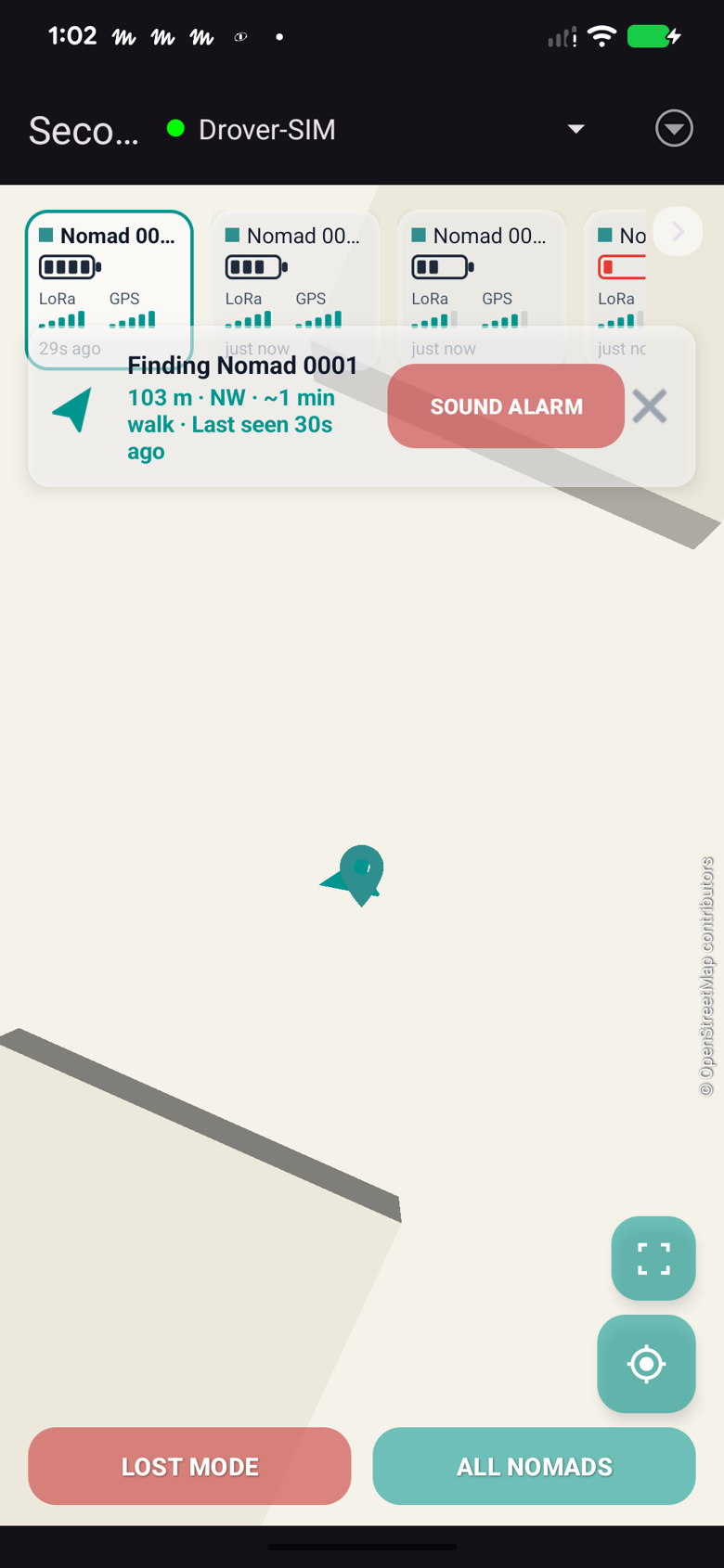
Start a Find
- From the map: tap the tracker in the strip at the top, then tap FIND. This starts find mode on the map — and, while you are connected to the hub, it also marks the tracker as lost so it reports much more often (next section).
- From the tracker list: open the card's small menu and tap Find Nomad. This opens the Find screen described further down.
- You can also find a place you marked: tap a waypoint pin on the map and choose Navigate (Find) — see Waypoints & pins.
Finding from the map
Tapping FIND on the map opens a banner across the top of the map. It names the tracker and shows an arrow to follow, plus one line with the distance to it, the direction (like NE), about how long the walk takes, and how long since it was last seen. The banner updates every second as you walk.
While you are finding, the FIND button turns red and reads LOST MODE. With the hub connected, the tracker is asked to report about every 30 seconds instead of its usual roughly five minutes, so its spot keeps up with a moving dog. A SOUND ALARM button also appears on the banner: tap it to set off the tracker's alarm so you can hear where it is, and tap STOP ALARM to quiet it. Tap the red LOST MODE button to finish: the tracker goes back to its normal reporting, and the alarm button goes away.
If the hub is not connected when you tap FIND, find mode still works on the map — but the faster reporting and the sound alarm need the connection, and the app will say so.
The Find screen
The tracker list's Find Nomad menu item (and Navigate (Find) on a waypoint) opens a full Find screen instead:
| What you see | What it means |
|---|---|
| The big distance | How far you are from the tracker, in a straight line. It updates as you walk. |
| The arrow | Points toward the tracker. Hold the phone flat in front of you, turn until the arrow points straight up, then walk that way. |
| The small print | How fresh the tracker's position is — “GPS fix just now”, or “Last position 5m ago” — and, if it is moving, which way and how fast: for example Moving 090° E (10.8 km/h). |
When you get close
Within about 15 metres (roughly 7 parked cars), the screen switches to “You are nearby — look around!” and the phone gives one gentle double-buzz, so you can put the phone away and search with your eyes. It will not keep buzzing while you stay close. If you wander off and come back, it can buzz once more.
If Find will not start
- “No position yet” — the tracker has not managed to find its position since it was last heard. Wait for a check-in with the tracker outdoors, or check its card in Your trackers.
- “Acquiring phone location...” — your phone does not know where you are yet. Step into the open and make sure Location is turned on.
- Arrow spinning or pointing oddly? Phone compasses get confused near cars and metal. Wave the phone in a figure-8 a few times — that usually settles it.
- “Compass unavailable on this device” — a few phones have no compass sensor. Find then shows the direction as a bearing number instead; walk and watch the distance shrink.