Where they've been
Every position a tracker reports is saved on your phone. Open a tracker from the list to see where it has been.
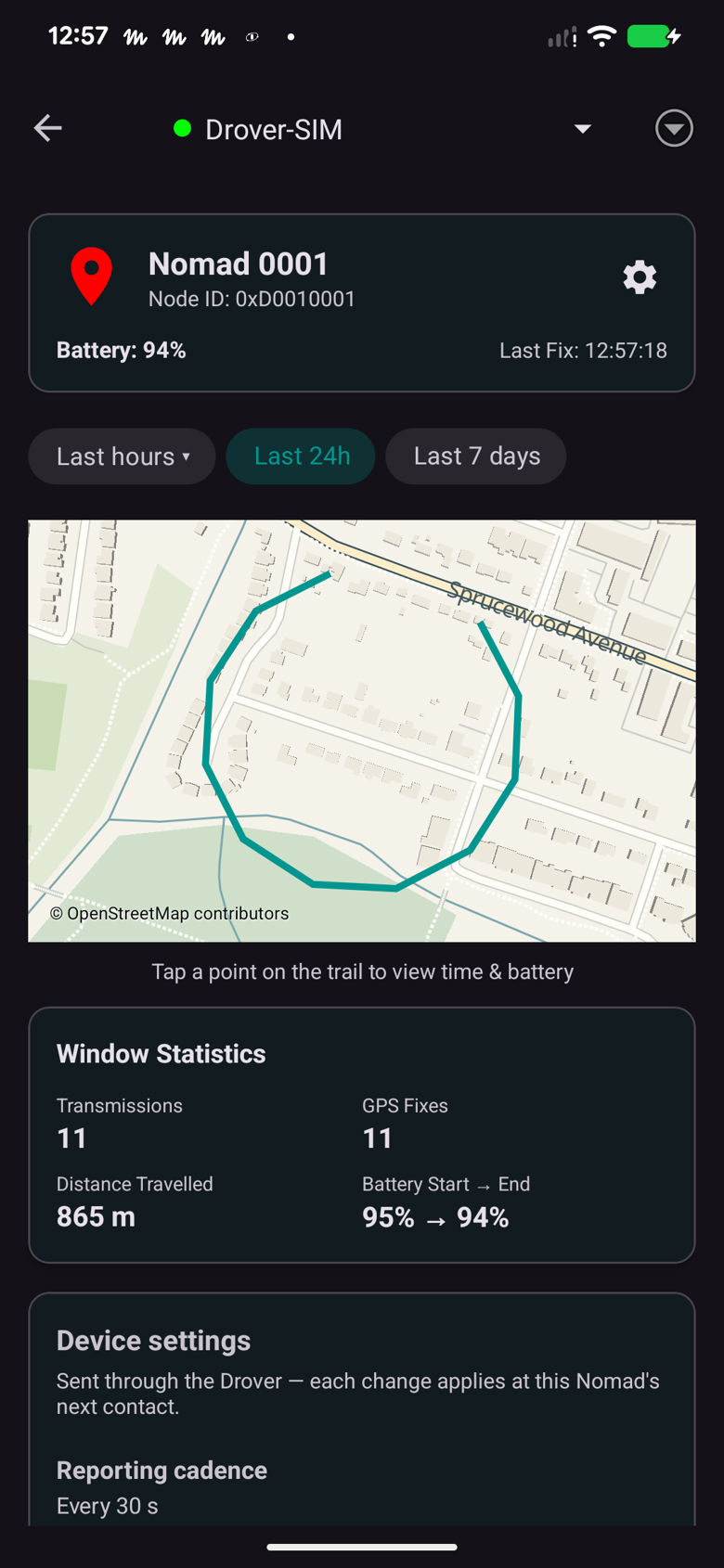
Choosing a time range
- Last 24h (the usual choice) and Last 7 days mean the last 24 hours or 7 days counting back from now — not calendar days.
- The Last hours menu narrows it to just the last 1, 2, 3, 6 or 12 hours — handy right after a walk or a trip.
- The page is live: leave it open and new check-ins appear on their own.
- The positions are drawn as a trail. Tap any point on the trail to see the time and the battery level at that moment. Very long ranges show at most the latest 2,000 points.
The numbers at the top
- Check-ins — how many times the tracker actually sent its position. Behind the scenes, the hub repeats its newest message to your phone about once a second so nothing is missed; the app is careful to count each real check-in only once, so the repeats do not inflate the number. A healthy tracker checks in about 12 times an hour.
- GPS fixes — how many of those check-ins included a real position.
- Distance travelled — roughly how far the tracker moved in the time range.
- Battery Start → End — the tracker’s battery level at the start of the range and at the end, so you can see how much charge the outing used.
The list of positions
Each line is one position: when it was reported, where, and how accurate it was (smaller numbers are better). If a tracker checked in without finding its position, there is no line for it — Drover never invents a position.
Save a copy of a route
From this screen you can save the tracker's route as a track file (called a GPX file). Other map and hiking apps can open it — nice for keeping a hike log or sharing a route with a friend.
Clearing one tracker’s history
This screen has a Clear History for this Nomad button. It deletes just this tracker’s saved history from the phone, after you confirm. Clearing every tracker at once lives in Settings — see Settings & backups.
How far back history goes
The phone keeps 7 days of history by default, then tidies up the older days automatically. You can keep more or less in Settings. If history seems to begin suddenly at some recent day, it is usually this tidy-up (or a brand-new install) — see Troubleshooting.