Pairing a hub
“Pairing” simply means introducing your phone and the hub so they trust each other. You only do it once — after that, they reconnect on their own.
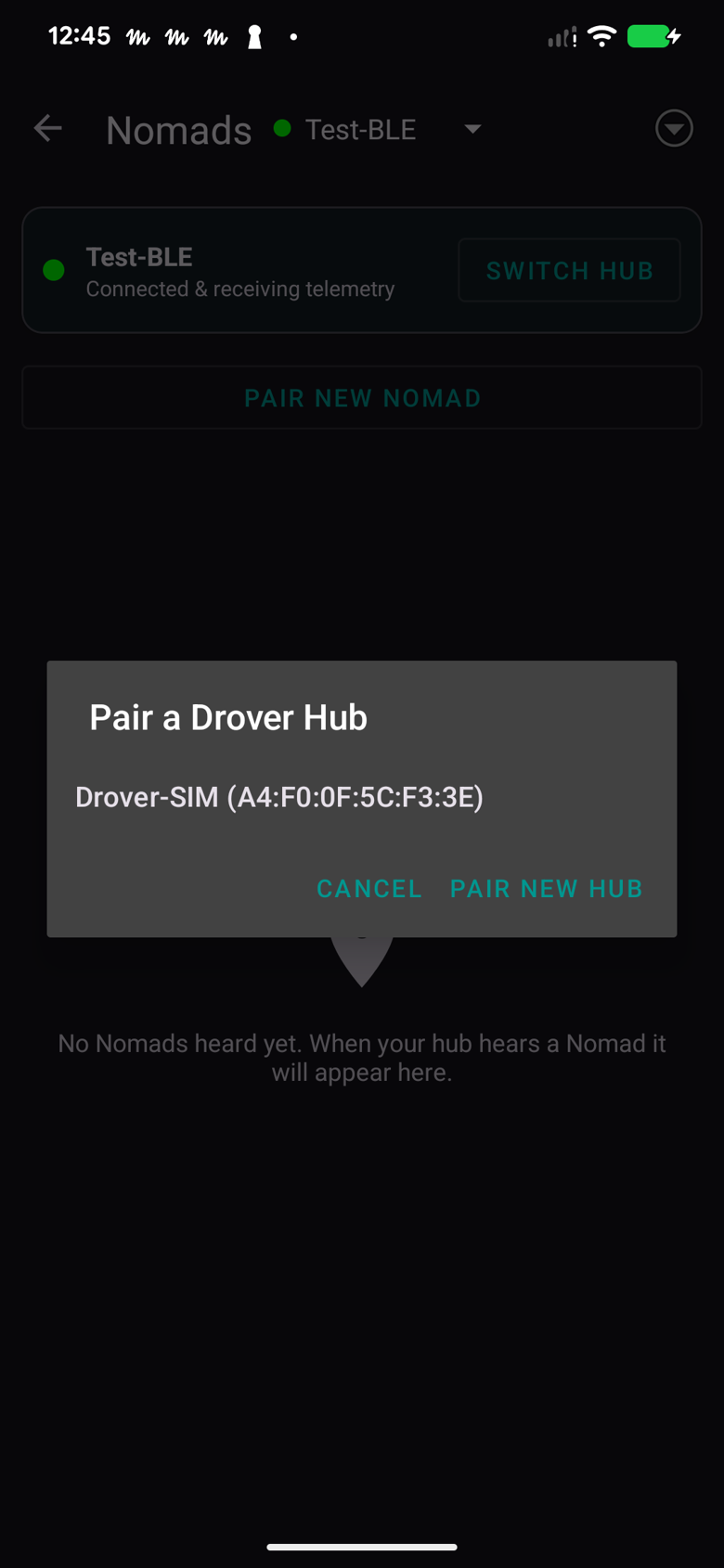
Pair a new hub
- Plug the hub in and keep it within a few steps of the phone.
- Open the menu (the ☰ button) and tap Pair Drover Hub. The app looks for nearby Drover hubs.
- Tap PAIR next to your hub.
- Your phone will ask for a pairing code. Type 123456. Every Drover hub uses this same code.
- Give the hub a name — like “Truck hub” — and pick a colour. Tap Save. Done: the app connects to it right away.
If you have more than one hub
- You can save several hubs — one at home, one in the truck. Only one is connected at a time.
- Switch between them using the hub name at the top of the screen, or the SWITCH HUB button on the trackers screen.
- A green dot means that hub is connected and receiving. Grey means “saved, but not connected right now”.
- Remove BLE Hub in the menu deletes a saved hub from the phone. You can always pair it again later.
Changing the pairing code
Every hub starts with the code 123456, but you can give a hub your own code. Open Your trackers, tap your hub's card to open its settings, and use the Change pairing PIN row. The new code only counts once the hub itself confirms the change — until then the old code still applies. Your phone stays connected; the new code is what the next pairing with this hub will ask for. If the row says “Needs a hub firmware update”, that hub cannot take a new code yet. More in Settings & backups.
Reconnecting
If the pairing code saved on this phone no longer matches the hub's — the hub's code was changed, or the hub was reset — connecting asks you to type the hub's current code. The right code completes the connection; a wrong one is refused and nothing connects.
- In the normal run of things the app reconnects by itself — after the phone restarts, and usually after the hub is unplugged and plugged back in, or after you walk away and come back.
- If a hub stays “Not connected” after you are back in range, open the app and give it a moment. If it still does not connect, close Drover completely and open it again — a fresh start makes the app look for the hub again. More help in Troubleshooting.
- One hub talks to one phone at a time. If someone else in the family is connected to the same hub, your phone waits its turn. This is the most common reason two phones show different amounts of history.
Adding a tracker
A hub only hears trackers that have been paired with it. Adding one is a short dance between the tracker, the hub and the app:
- Connect the hub first — the phone must be showing it as connected.
- Open Your trackers and tap PAIR NEW NOMAD. The app opens a pairing window on the hub.
- Arm the tracker with its button, as the app directs. The app shows that the hub is looking for it.
- The app asks “Which colour is the Nomad’s light showing?” Look at the tracker’s light and tap the colour that matches. You get up to three tries.
- When the colours match, the tracker is paired — give it a name, and it joins the list.
You stay on the pairing screen until it finishes, you cancel it, or it runs out of time. If it does not work — no tracker answers, or the colours do not match — nothing is saved. Move the tracker closer to the hub and try again.
Still not connecting?
Check the basics first: Bluetooth on, hub plugged in, nobody else connected to it. Then see Troubleshooting for a fuller checklist.