Offline maps
Drover is made for places without signal. Tracking never needed the internet — and if you download the map before you go, the map itself works anywhere too.
Download an area before you leave
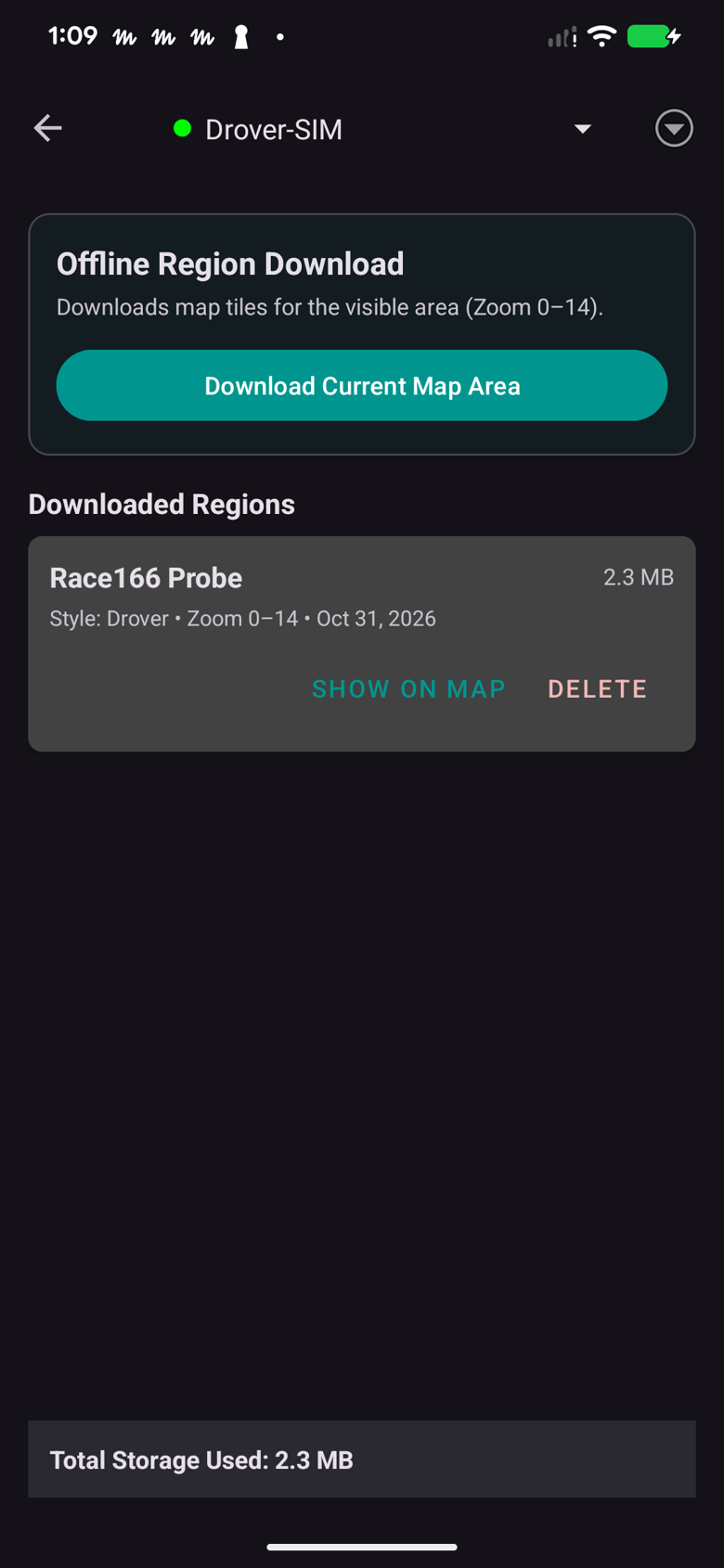
- While you still have signal or Wi-Fi, open Offline Maps from the menu.
- Move and zoom the map to the area you will be in, then download it. Bigger areas use more phone storage — one park or one county is a good size.
- Wait until the download finishes. The area is then listed, with its size, ready to use.
Starting a download on mobile data brings up a warning first — nothing downloads until you tap Continue. You can also pause a download part-way and resume it later from this screen.
- Downloads work whether or not you are signed in. No account is ever needed to take a map with you.
- All map information comes from Drover's own computers — the app never fetches maps from outside map services.
- Downloaded areas are used automatically when you are out of signal.
Managing your downloads
- The Offline Maps screen lists every downloaded area and how much space it takes.
- Delete areas you no longer need. You can always download them again when you have signal. Deleting gives the space back properly: the app tidies up its map store afterwards, so the freed space is really yours again, not just marked for reuse.
- Each download is made in a map style you pick for it, and that is the style you will see when you use that area with no signal.
- Downloads do not expire, but roads and trails change over time. If it has been a few months, refresh an area before a big trip.
Grey, empty map out in the field? That almost always means the area was never downloaded and there is no signal. Your trackers' positions are still being recorded — only the background map picture is missing. See Troubleshooting.