Safe Zones & alerts
A Safe Zone is a place that matters — home, the yard, the campsite. Tell Drover which trackers belong there, and it will message you when one of them arrives or leaves.
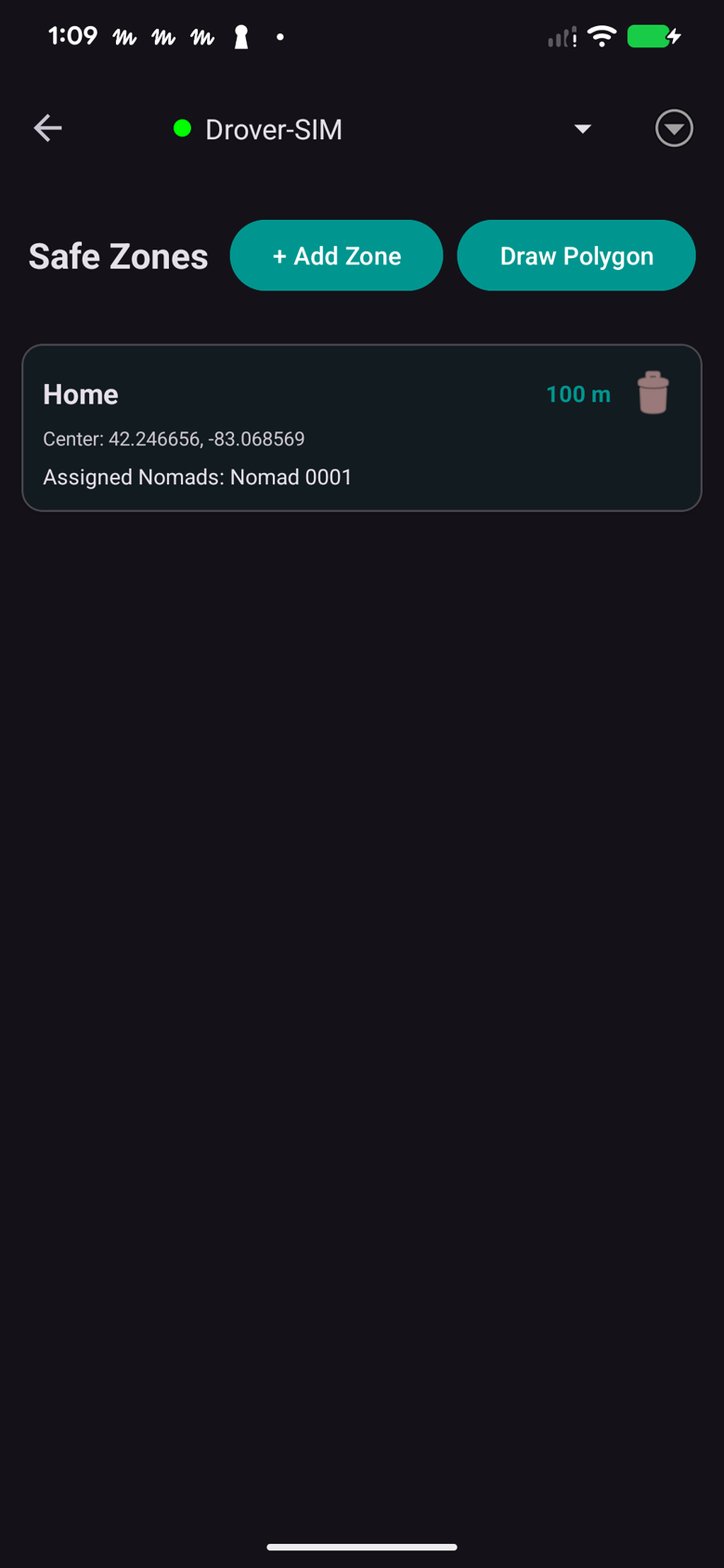
Make a Safe Zone
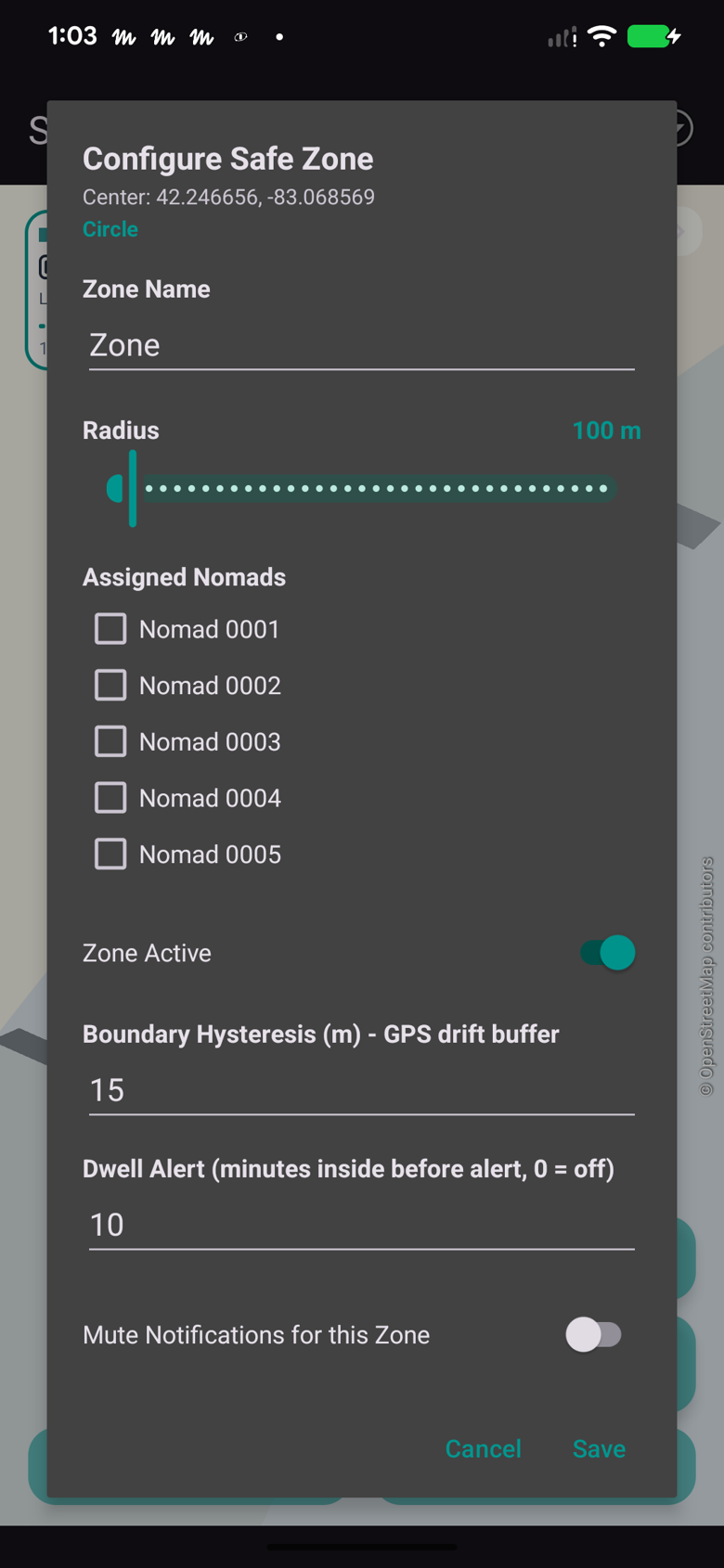
- Round zone: press and hold the map → Circle safe zone here. Give it a name and choose how big the circle is. Best for a house or campsite.
Fine-tuning, in the same editor: a circle's size is set with the Radius slider, and a drawn shape can be started over with Redraw. Boundary Hysteresis is a small buffer in metres around the edge, so GPS wobble right at the boundary does not raise false alarms. Dwell Alert only alerts after the tracker has stayed inside the zone for the minutes you set (0 turns dwell alerts off).
- Drawn zone: press and hold → Draw polygon safe zone, then tap the corners of any shape — a field, a park, an odd-shaped lot. Finish the shape to save it. While you draw, a bar along the bottom gives you Undo (take back the last point), Clear (start the shape again), a Freehand switch (draw the boundary by dragging instead of tapping corner by corner), Cancel, and Done.
- You can also manage all your zones from the Safe Zones screen in the menu.
Choose which trackers it watches
A zone only watches the trackers you assign to it. Open the zone, tap Assign Nomads, and tick the ones it applies to — the kids' zone does not need the tool bag. A tracker can belong to several zones at once.
How the alerts work
- You get a phone notification when an assigned tracker arrives in or leaves the zone, based on its usual check-ins (about every 5 minutes).
- Drover double-checks before alerting. One stray reading near the edge will not set it off — the tracker has to show outside (or inside) in two check-ins in a row. So GPS wobble at the fence line will not buzz you all night.
- No position, no alert: a check-in without a real position never triggers anything.
- Tap an alert to jump to that tracker on the map.
- Alerts are worked out on your phone — no account and no phone signal needed. They work in guest mode too.
Two ways to quiet things down
| What you tap | What it does |
|---|---|
| Mute a zone (on the zone's edit screen) | That zone goes quiet for all its trackers. The zone stays drawn and assigned. |
| Mute a tracker (the card menu → Mute Alerts) | That tracker goes quiet in every zone. Its card shows a crossed-out bell. Tracking still works — only the messages stop. |
| “Mute this Nomad” on an alert | The same tracker muting, without leaving the alert — handy at 2 a.m. |
Changing or removing a zone
Open a zone to rename it, resize a circle, pause it (turn it off without deleting), or delete it. Deleting a zone also removes its tracker assignments; the trackers themselves are untouched.