Settings & backups
Everything in the Settings screen, in plain words — plus how to back up your setup and move it to a new phone.
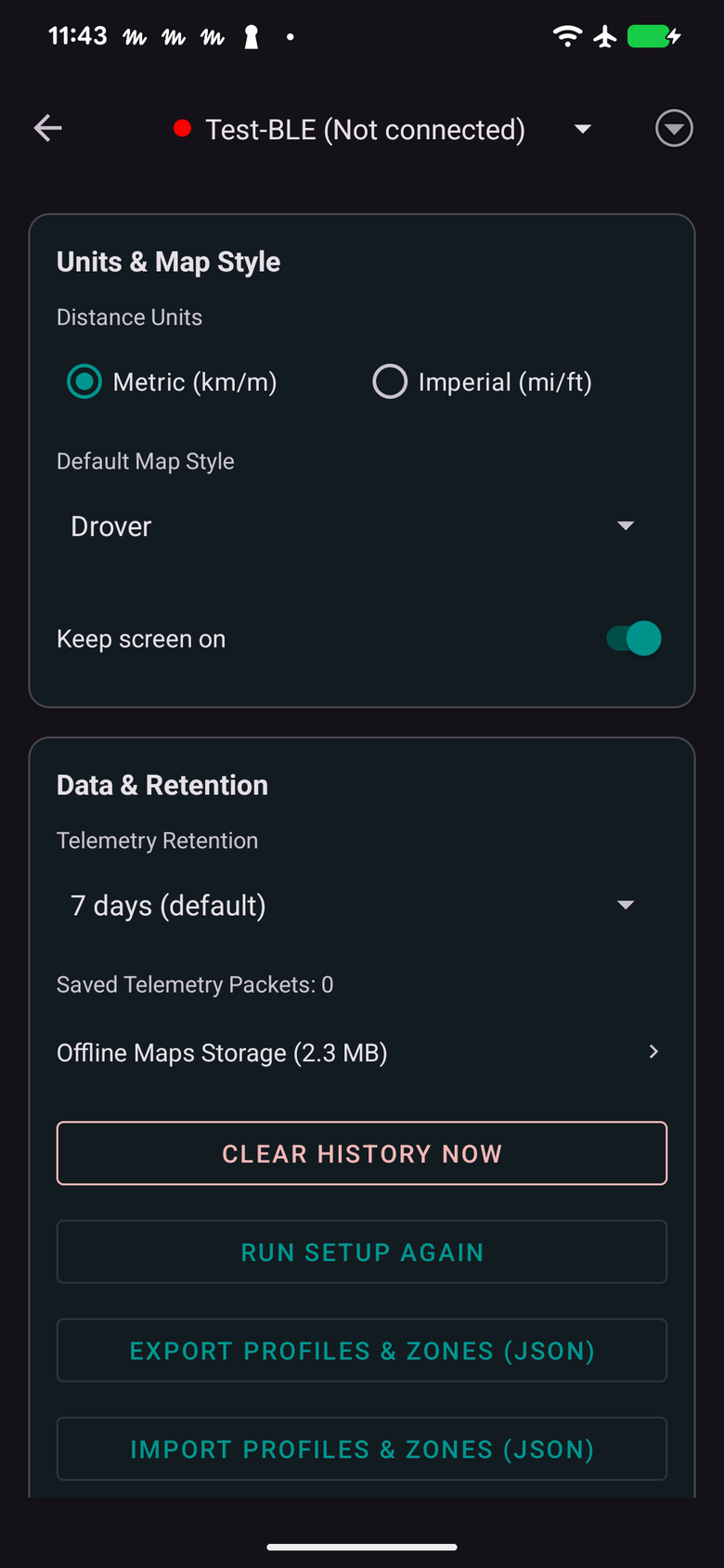
Everyday settings
| Setting | What it does |
|---|---|
| Units | Metric (metres/kilometres) or Imperial (feet/miles) — used everywhere: cards, Find, history. |
| Map style | How the map looks. The same choices as the menu's Map style row, including Drover's own style. |
| Keep screen on | Keeps the screen awake while Drover is open — handy on the map and while finding. It is on unless you turn it off. |
Your saved data
| Setting | What it does |
|---|---|
| History length | How many days of position history the phone keeps before tidying up. The choices are 1 day, 7 days (the standard), 30 days, or keep everything until you clear it yourself. |
| Offline Maps Storage | How much space your downloaded map areas use. Manage them under Offline Maps. |
| Clear History Now | Deletes all saved position history on this phone, for every tracker, after you confirm. It cannot be undone, and it does not touch the hub or the trackers. The card also shows how many packets are saved right now. |
| Run Setup Again | Steps through the first-run setup screens again. |
Warnings on this phone
The Local Alerts part of Settings holds warnings this phone raises itself. A switch at the top of the card turns all of them off at once. They only work while tracking is running, and they never leave the phone.
| Alert | What it does |
|---|---|
| Low Battery Alerts | A warning when a tracker’s battery falls to the level you pick — 20% unless you change it. On unless you turn it off. |
| Nomad Silence Alerts | A warning when a tracker has not been heard from for as long as you pick — 15 minutes unless you change it. On unless you turn it off. |
Your hub's own settings
Each hub also has settings of its own, separate from this screen: open Your trackers and tap your hub's card. There you can rename the hub and set whether it connects automatically. On current hubs you can also:
- Change pairing PIN — give the hub your own pairing code instead of 123456. The change counts only once the hub itself confirms it; this phone stays connected, and the new code is what the next pairing with this hub will ask for. On a hub whose row says “Needs a hub firmware update”, the code cannot be changed yet.
- Message relay — whether the hub passes messages along for trackers that cannot reach it directly.
- Radio profile — one of Short, Medium or Long. It is one setting for the hub and every tracker together: each tracker picks the new profile up at its next contact, so the whole group stays matched. A tracker that has not switched yet cannot be heard until its update arrives, or it is paired again.
- Region — shown for information only. It is set by the hub’s hardware and cannot be changed.
- Power off this Drover — turns the hub off. The app will not try to reconnect to it until you connect it yourself; to turn it back on, press and hold its power button for 5 seconds.
- Forget this hub — removes the hub from this phone and removes the Bluetooth pairing. You will need the pairing code to connect again.
- Reset Drover to factory settings — wipes the hub itself: it unpairs all its trackers and restores factory settings. The app warns you first, naming every paired tracker — none of them is told about the reset, and each one has to be reset by hand afterwards. You are then asked for the pairing PIN before anything is sent. It cannot be undone.
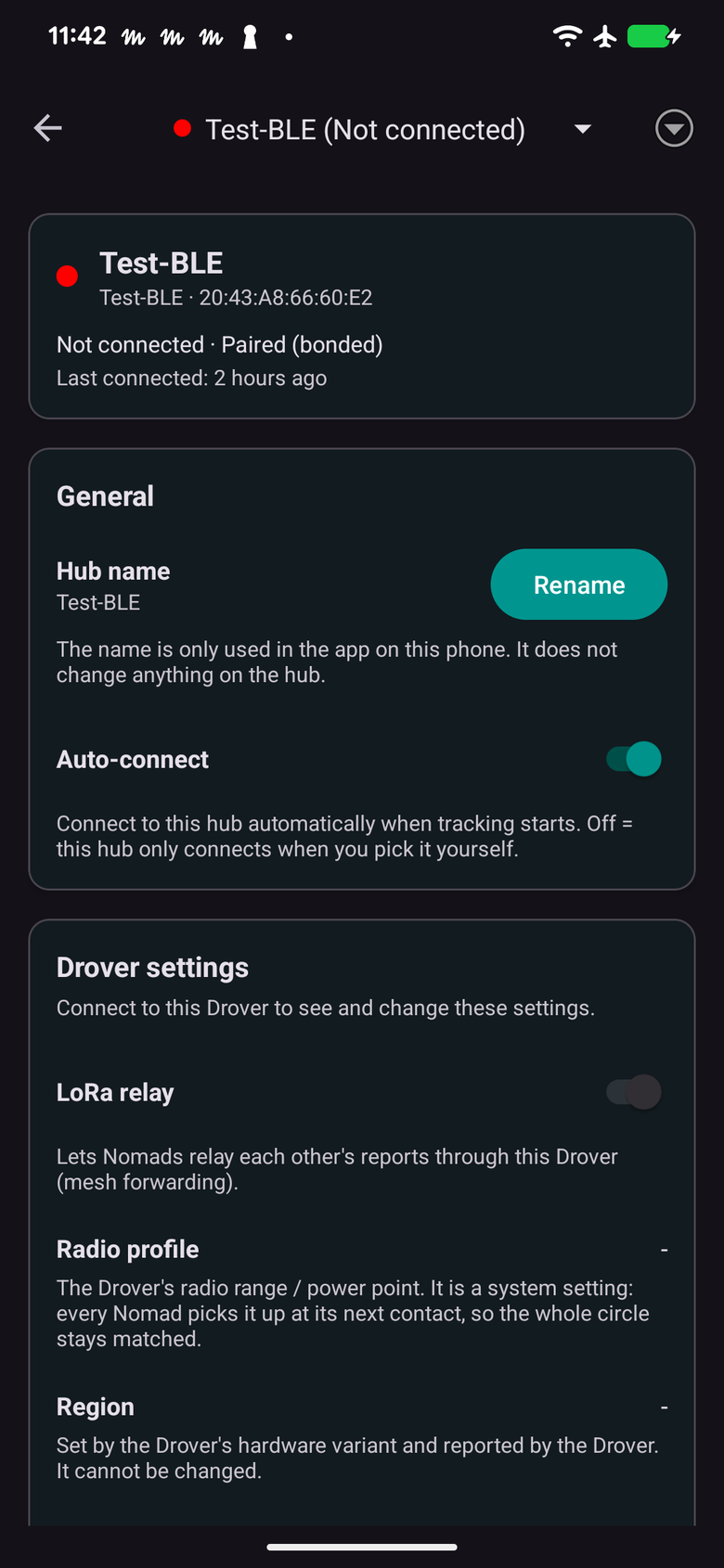
The settings that live on the hub can only be seen and changed while the phone is connected to it — open this screen while disconnected and it asks you to connect first.
The coloured dot beside the hub's name is yours to choose: tap the hub's name in the side menu and pick a colour. If you have two hubs, different colours make them easy to tell apart in the top bar.
Hub security is always on — there is no security switch to find or turn off.
Back up or move your setup
Your tracker names and colours, your Safe Zones, and your pins can move between phones as one small backup file — no account, no cloud, nothing leaves your hands except the file you choose to send.
- Save a backup: Settings → Export Profiles & Zones. Choose where to save the file (its name looks like
drover-config-20251025.json). Afterwards you can also Share it straight to another phone. - Load a backup: on the other phone, Settings → Import Profiles & Zones, pick the file, and check the summary before confirming.
- Loading a backup updates what is there — it never makes duplicates. A name, zone or pin in the file replaces the matching one on the phone.
Your account (optional)
- Guest mode — the standard way to use Drover after tapping “Skip login”. Everything works, and nothing leaves the phone.
- Sign in — connects your Drover account. Signing out takes you back to the sign-in screen; your on-phone data is not touched. If you tap something that only works with an account while you are in guest mode, the app offers to sign you in first.
- Edit Profile — if you are signed in, you can change the name and region saved on your account.
- Delete Account — if you are signed in, a red Delete Account & Cloud Data button appears in the account part of Settings. It asks you to confirm, then opens the account deletion page, where you can remove your account and its cloud data.
- Account sync — a separate switch, off unless you turn it on. With it on, the phone can send copies of your trackers' positions to your account when internet is available, so you can see them from another phone later. Tracking never depends on it: on or off, signal or no signal, positions keep recording on the phone exactly the same.
About Drover
At the bottom of Settings, the About Drover card shows exactly which build you are running, as “Version: … (Build …)”, plus the app's package name. The same card links to the Privacy Policy, the Account & Data Deletion page, and this App Help — App Help is also in the menu, under SUPPORT.
If support asks for the connection diary
The app's menu has View BLE logs, in the SUPPORT section next to Help — a running diary of the phone's conversation with the hub. You will never need it day to day, but if our support team ever asks what the connection is doing, that screen is what they mean. (BLE is simply the low-energy kind of Bluetooth the hub uses.)